
Configuration and administration
Connect WPS
Configure WPS login and member import.
Guide · Module: integrations · Developers · Deployment: Not specified · Confirmed product versions: Not specified · Source: Existing documentation
After connecting, enterprise members can authorize through WPS and log in to AskTable using an organization-specific link. AskTable synchronizes enterprise members according to the WPS application's visibility scope.
Prerequisites
- You are an Owner or Admin of the current AskTable organization;
- You have permission to create and manage custom applications for the current enterprise in WPS Open Platform;
- Members' browsers can reach the AskTable callback URL. Private deployments should use an HTTPS URL allowed by the enterprise platform and accessible from members' browsers.
Screenshots illustrate field locations; enterprise platform interfaces may change, so follow the actual console.
1. Create an enterprise custom application
Sign in to WPS Open Platform, enter the developer console, and create an enterprise custom application. Enter its name, introduction, and icon, then open its details page.
Find the application's AppID and SecretKey/AppKey on the details page. WPS console versions may label the secret SecretKey or AppKey; AskTable consistently calls it AppKey.
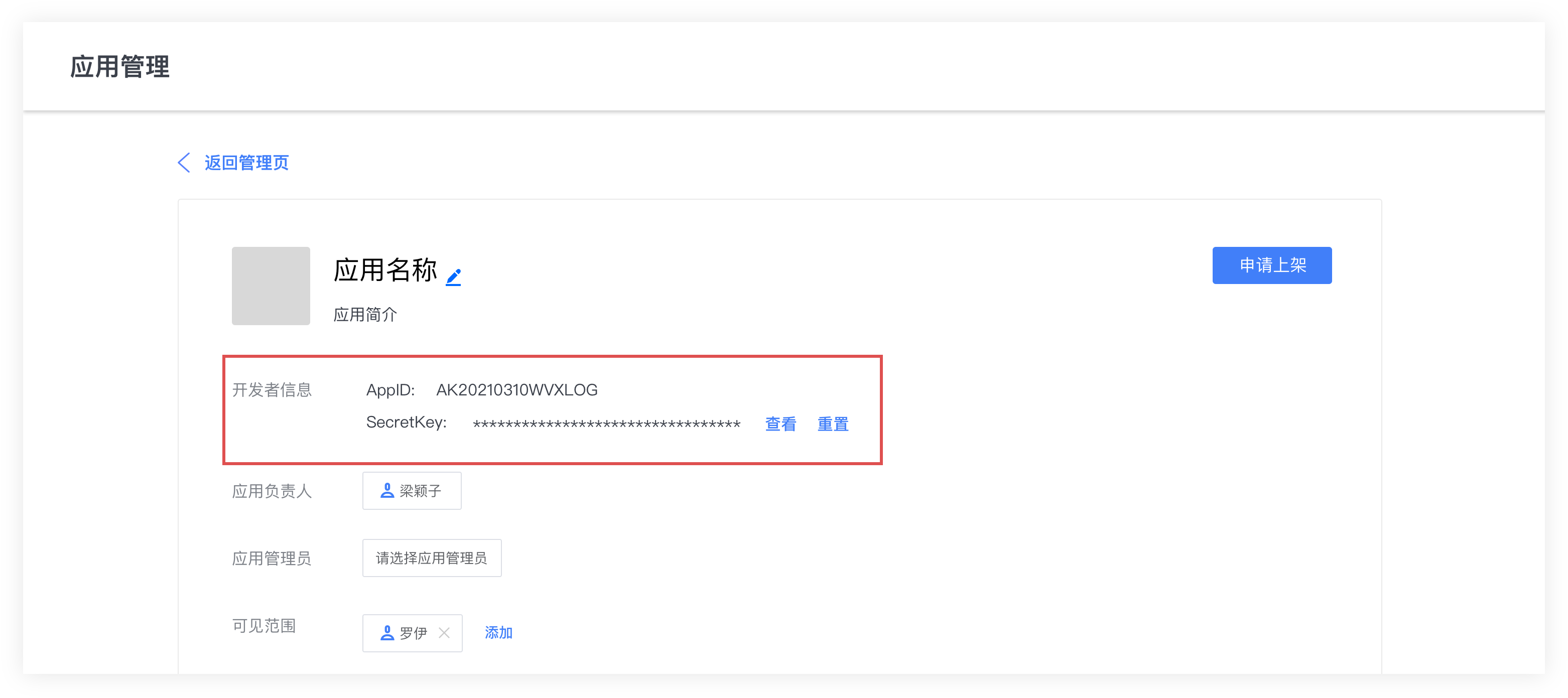
AppKey is a sensitive credential. Resetting the secret in WPS Open Platform invalidates the old one; update the configuration in AskTable too.
2. Configure permissions and visibility
Complete these settings on the application details page:
- Select the departments and members allowed to log in to AskTable in Visibility scope;
- Request permissions to read user basic information, the address book, or application visibility scope in Permission management;
- Submit for approval or publish as required by the WPS console so the application takes effect for enterprise members.
Permission names vary by WPS console version. The principle is that login needs the current authorized user's basic information, while member import needs the enterprise address book and application visibility scope.
3. Enable the integration in AskTable
Open Profile → Organization → Enterprise integrations → WPS Collaboration, read the introduction, and click Enable. Enter AppID and AppKey in the dialog, then click Enable.
Enabling only saves configuration; it does not immediately verify credentials or import members automatically. URL, import, and editing actions below become available only after saving succeeds.
4. Configure the authorization callback URL
After enabling, copy Callback URL from Login URL in AskTable. Return to WPS application details, open Security settings, and add the full URL to the authorization callback URL configuration.
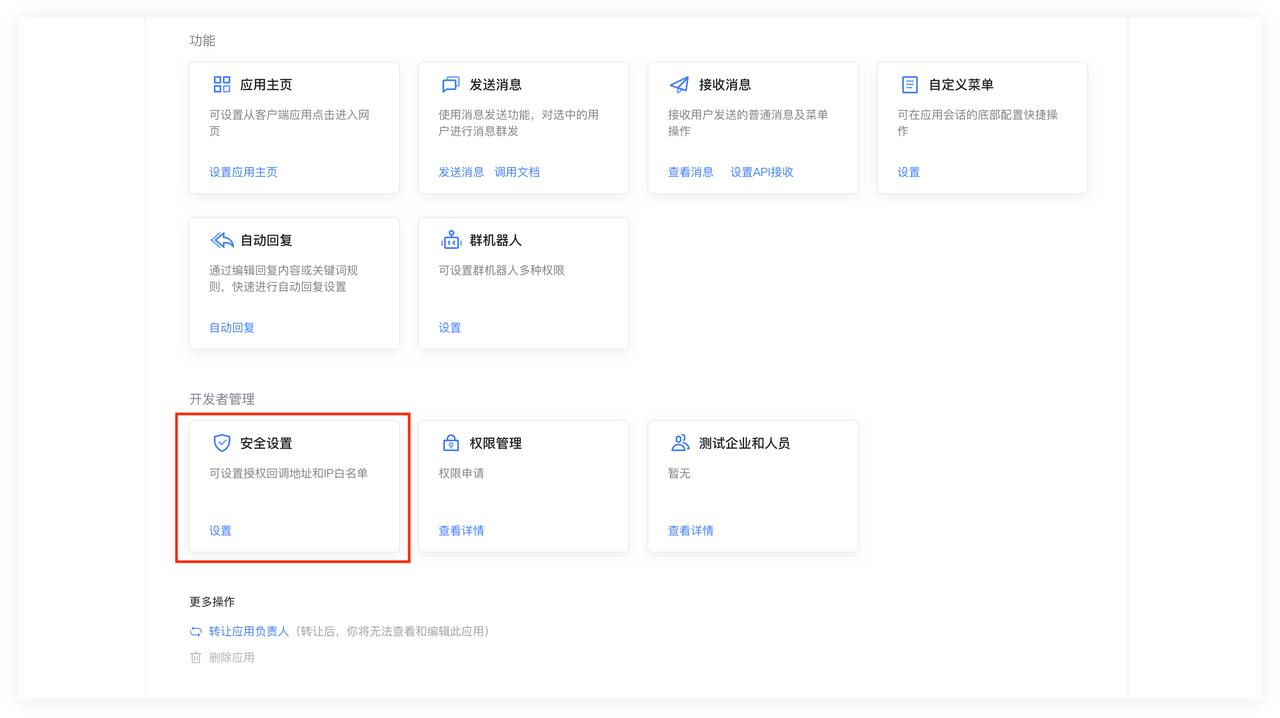
The callback URL must exactly match the page, including protocol, domain, and path. Local URLs have no query parameters; Cloud URLs also include org_id, which must not be removed or changed. Do not add an extra trailing /.
If Security settings enables an IP allowlist, add the AskTable deployment's outbound IP. Otherwise WPS may reject API calls, causing candidate lookup or member import to fail.
5. Select members to import
Return to AskTable and click Import members. Search, filter, and select people in the dialog. The page shows remaining slots; after successful submission, it shows newly added and existing member counts.
- New members join the organization as Members;
- Existing members' roles do not change;
- Removing upstream members does not automatically disable AskTable members;
- Synchronization does not automatically restore disabled AskTable members.
To adjust candidate scope, first change Visibility scope on the WPS application, then reopen the import dialog.
6. Verify login
- Confirm the test member is within application visibility and has been imported successfully;
- Copy Callback URL from AskTable and open it in the test member's browser;
- Complete WPS authorization and confirm the correct AskTable organization opens.
First-time enterprise login does not create members automatically. The test member must already be imported, with both AskTable user and organization membership active.
Troubleshooting
Candidate lookup or import fails
- Check that AppID and AppKey come from the same application;
- Confirm AppKey has not been reset;
- Check that address book and application visibility reading permissions have been approved and taken effect;
- Check that the target department or member is within application visibility;
- If an IP allowlist is enabled, confirm the AskTable deployment's outbound IP is included.
Cannot return to AskTable after authorization
- Confirm the callback URL in WPS Security settings matches the AskTable page character for character;
- Confirm the application is approved or published and visible to the test member;
- Local must use the parameter-free URL shown on the page; Cloud's
org_idcannot be removed or changed.
Change enterprises or applications
AppID cannot be edited directly after enabling. Disconnect the integration on the details page first, then enable it again with the new application's credentials. Disconnecting does not delete existing users, organization members, or project data.
For more identity scope and disconnection rules, see Enterprise integration login.
After importing, assign project roles and data access scope; see Invite members and Set data access scope.