
Configuration and administration
Choose an integration method
Choose a bot, web embedding, API, or other integration method for your use case.
Guide · Module: integrations · Developers · Deployment: Not specified · Confirmed product versions: Not specified · Source: Existing documentation
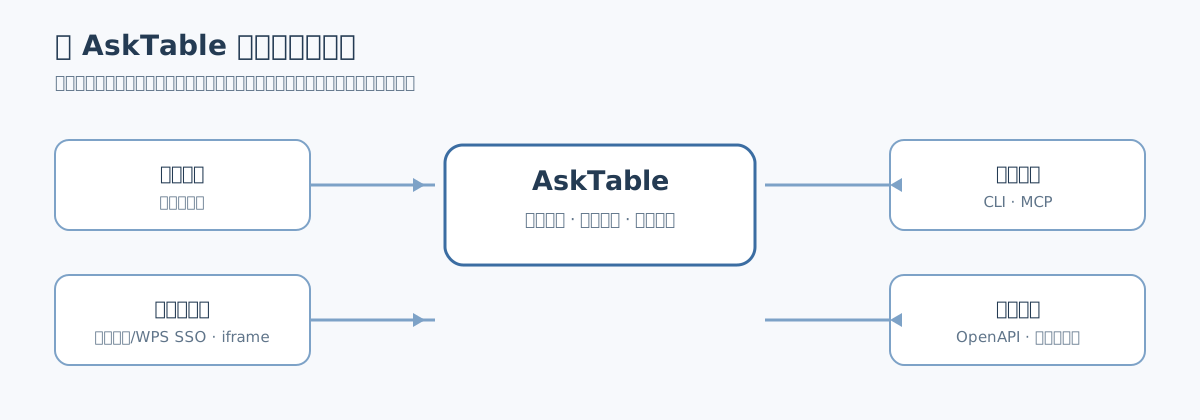
Data Agents can be used through the web, Feishu, Slack, embedded pages, or APIs. The integration method determines the entry point and authentication method; data access permissions are controlled jointly by the Agent, roles, and policies.
Before you begin
- Permissions: configuring integrations requires project owner or administrator permissions; project members can use enabled features. Roles and policies still control the specific data scope.
- Prerequisite: create a data Agent and attach data sources first. Use the left main navigation → “More” (opens “Agents” directly) → “Create” at the upper right.
- Credentials: entry points that require code (CLI, MCP, OpenAPI, Coze) use a project “API-Key.” Create one from the left main navigation → “Settings” → “API-Key” → “Create API-KEY,” choosing
asker(questions only) oradmin(resource management) in the dialog. - Private deployments: Feishu and Slack channels need an additional
asktable-feishu-gatewaycontainer, which is not in the main compose file. See Deploy the messaging gateway.
Steps
Identify the caller first
Three choices correspond to three identity models:
- Internal members: web conversations use AskTable login identities; Feishu and Slack channels use each platform's person identities and channel authorizations.
- External anonymous visitors: use an embed URL without login, with data scope fixed to one role.
- Automation services: use a project API-Key (CLI, MCP, OpenAPI, Coze plugins).
Choose an entry point for the caller
| Problem to solve | Entry point | Must the user log in to AskTable? | UI location |
|---|---|---|---|
| Explore data, follow up, and view results on the web | Conversations | Yes | Left main navigation → “New conversation” |
Let colleagues ask a bot in Feishu direct messages or @ it in groups | Feishu bot | No | Open Agent → “Channels” tab |
| Let colleagues ask a bot in Slack | Slack bot | No | Open Agent → “Channels” → select Slack as the platform |
| Add an anonymous data question window to your website or portal | Web embedding | No | Open Agent → “Embed” tab |
| Run analysis on a schedule and send conclusions to Feishu groups or email | Scheduled analysis reports | No (recipients) | Open Agent → “Scheduled tasks” tab |
| Maintain resources in bulk and ask questions from a terminal or pipeline | Command-line tool | Uses API-Key | Run asktable in a terminal |
| Let Claude and other MCP-capable AI clients call AskTable directly | MCP | Uses API-Key | Client configuration |
| Integrate data questions into business systems and handle responses yourself | OpenAPI | Uses API-Key | Server-side calls to /v1 |
| Let a Coze bot query data with a sentence | Connect Coze | Uses API-Key | Coze plugin configuration |
| Let employees log in from the WeCom workspace | WeCom | Yes (enterprise identity) | Administrator configuration |
| Let employees log in from the WPS workspace | WPS Collaboration | Yes (enterprise identity) | Administrator configuration |
“Conversations” and “Scheduled tasks” are answered by the same Agent. They differ in who starts them: a conversation answers each question a person asks; a scheduled task runs at its scheduled time and sends its conclusions.
Prepare identities and credentials
- Feishu channels require App ID and App Secret from a custom application in Feishu Open Platform; Slack requires an App-Level Token and Bot Token.
- An Agent enables only one channel platform at a time. Switching platforms or choosing “Disabled” preserves existing credentials and configuration for reactivation.
- An embed URL requires a fixed role in AskTable; fill any required role variables at the same time.
- API-Keys are shown in full only once, on creation; the list later shows only masked values. Give keys to scripts or server-side secret management, not browser code, iframe pages, or code repositories.
Complete configuration using the corresponding guide
The last two columns above provide entry locations. Each entry's fields, defaults, and acceptance steps are on its own page. Resource management actions (creating data sources, changing permissions, deleting Agents) require an admin Key; an asker Key is enough for questions only.
Verify once with minimal scope
Make one successful call in a test project, then deliberately test a wrong Key and a data scope without permission separately. Confirm clear error codes or UI messages so you have a reference for troubleshooting after release.
Key constraints
| Item | Value or default | Where to change it |
|---|---|---|
| Project API-Key count | Up to 10 per project | Left main navigation → “Settings” → “API-Key” |
| API-Key type | admin manages all project resources; asker asks data questions only | Type in “Create API-KEY” dialog |
| API root path | /v1 | No UI switch; API documentation is at <your-site>/v1/redoc |
| MCP service URL | Cloud https://mcp.asktable.com/; private deployment <your-site>/mcp/ | Bottom avatar → “Documentation” → “MCP service” |
| Embed URL enabled state | Enabled on creation | Switch on the right of an entry in “Agents” → “Embed” |
| Channel platform | Disabled by default; choose Feishu or Slack, then save credentials before first activation | “Agents” → “Channels” → “Platform” |
| Scheduled tasks | Disabled on creation | “Agents” → “Scheduled tasks” → enable switch in the form |
| Messaging gateway container | Add separately in private deployments; not needed for SaaS | See Deploy the messaging gateway |
Troubleshooting
| Symptom | Identifying condition | Resolution |
|---|---|---|
| All code-based entry points fail | Response code is AUTH_ERROR (HTTP 401) | Use another project API-Key; confirm the header is Authorization: Bearer <API-Key> |
| API returns HTTP 403 | Response code is PERMISSION_DENIED | The Key type or project role is insufficient; use an admin Key for management actions |
| Request parameters are rejected | Response code is VALIDATION_ERROR (HTTP 422), with a field name in message | Complete or correct the field indicated in message |
| Feishu or Slack bot does not reply | Check the current platform connection status, then recent message processing and reply delivery status; Connected does not mean every message succeeds | See troubleshooting tables in Feishu bot or Slack |
| iframe is blank or unavailable | Embed URL entry is Disabled, or the visitor page says the embed is temporarily unavailable | See Web embedding |
| Scheduled report is not received on time | The next trigger time is incorrect, or the latest run is Execution failed or Notification failed | See Scheduled analysis reports |
Next steps
- Create the Agent first, then choose an entry point: Create and configure a data Agent
- Define data scope with “People,” “Roles,” and “Policies”: Permissions and data security
- Private deployments run the Feishu gateway or MCP container separately: Private deployment (Docker)