Model Group Configuration Guide
What is a Model Group
A model group in AskTable is a functional module used for managing and configuring large language models (LLMs). Through model groups, you can:
- Connect to different LLM service providers
- Configure different models for various business scenarios
Applicable Scenarios
You need to configure a model group in the following situations:
- On-premise Deployment: Use your own API key to access LLM services
- Multi-model Management: Need to use multiple different models simultaneously
- Custom Models: Integrate enterprise-deployed large models
- Cost Control: Use different cost models to handle tasks of varying complexity
If you are not an upgrade user of AskTable version before 20260205 and do not have special requirements, there is no need to configure a model group. You can directly use the system's default configuration.
Configuration Steps
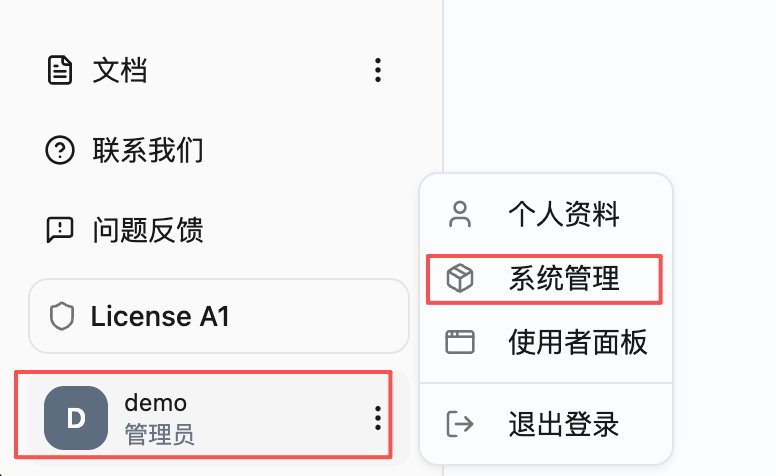
1. Enter System Management
In the AskTable interface, click the "System Management" button in the left navigation bar.
2. Enter Model Group Management
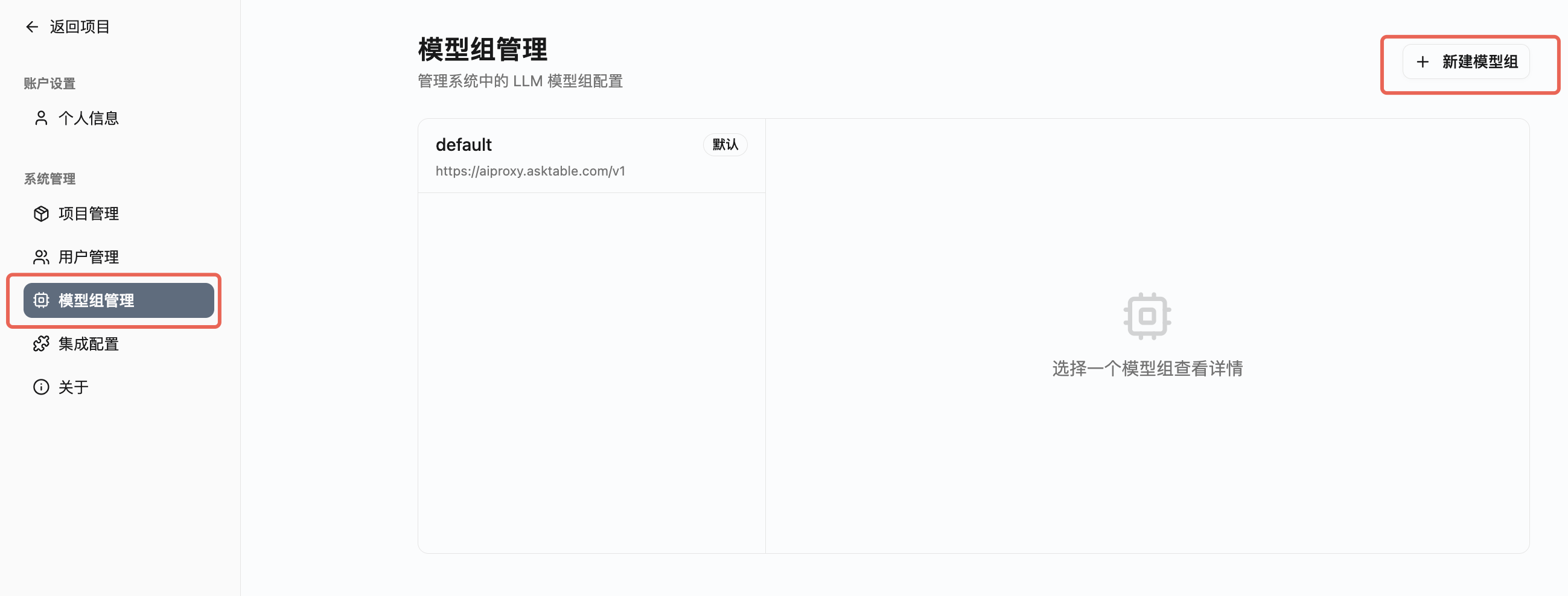
On the system management page, find and click the "Model Group Management" option.
3. Create a New Model Group
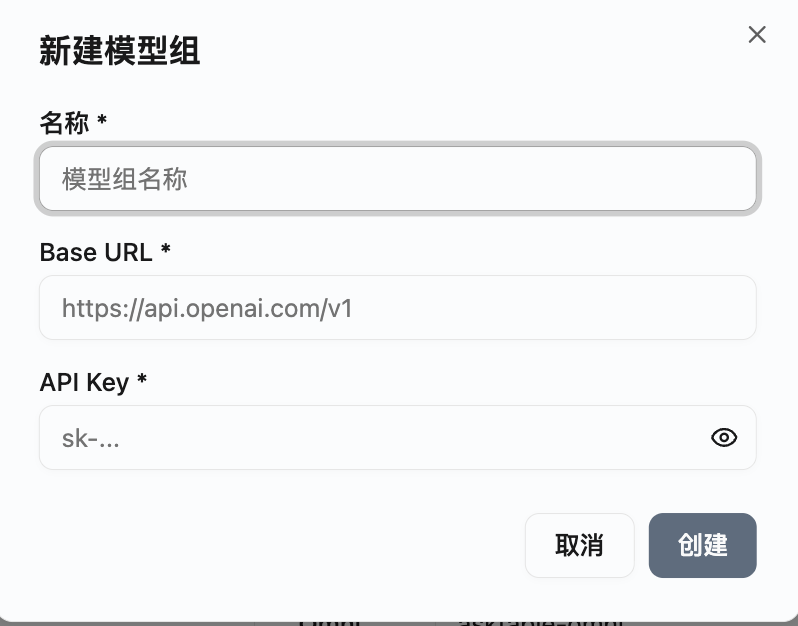
Click the "New Model Group" button, and in the pop-up dialog, fill in the following information:
- Name: Set an easily identifiable name for the model group
- Base URL: The API endpoint address of the LLM service
- API KEY: The key required to access the LLM service
The API KEY is sensitive information and should not be disclosed to others. It is recommended to regularly change the key to ensure security.
4. Configure Model Parameters
After creating the model group, configure the model in detail according to actual needs:
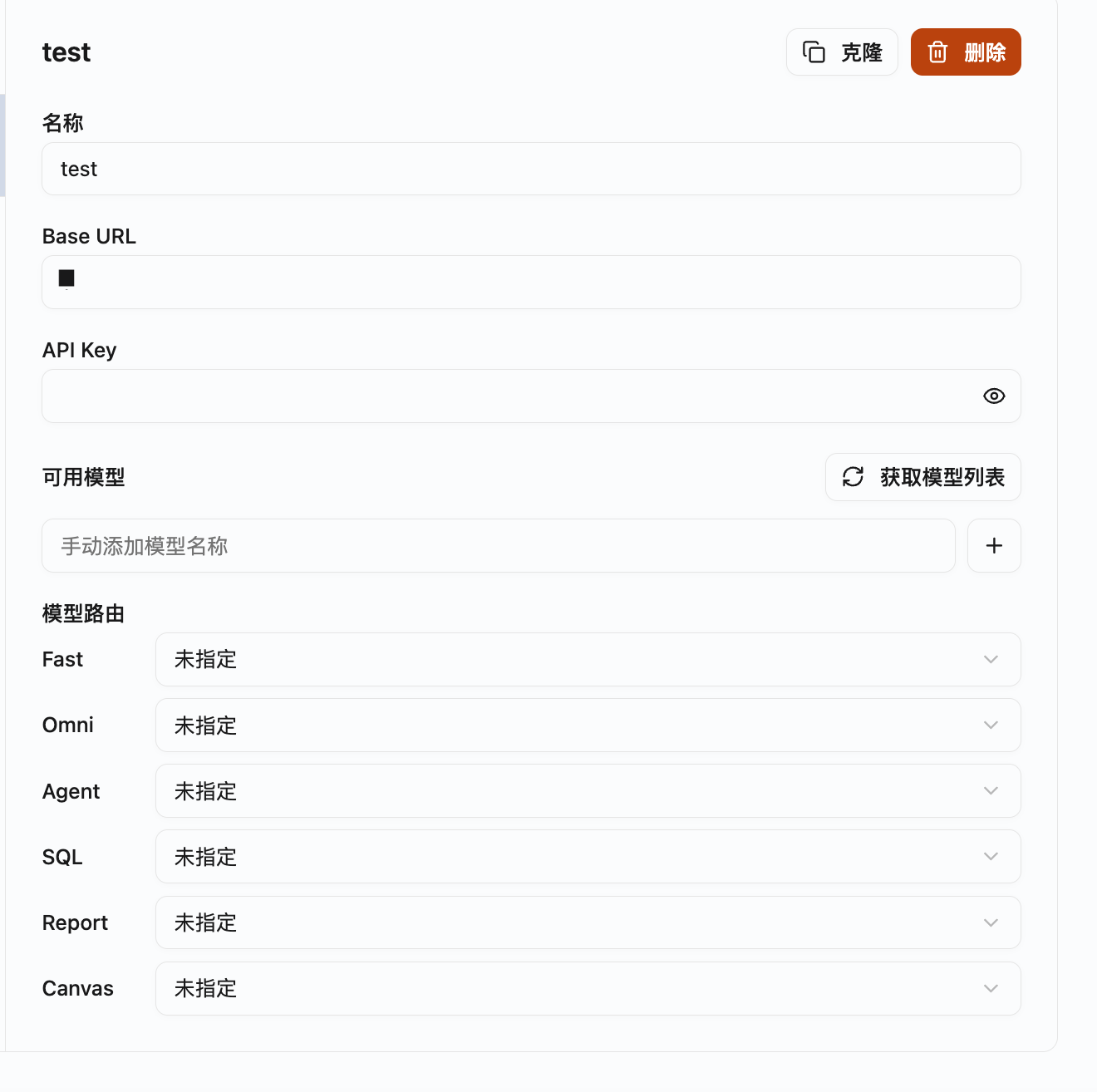
Using non-AskTable official models may not guarantee effectiveness. It is recommended to use AskTable official default configuration.
Please note that we recommend the full-performance version of DeepSeek-V3-671B for local models. Other models must meet the following conditions:
- At least 72B
- At least 64K context
- Support Function Call
- Support JSON (Instruct) Output
Additional performance requirements:
- Each AI question may involve 2-4 concurrent calls to large LLM models.
- Each AI question may require approximately 5000 Input Tokens and 500 Output Tokens.
We have prepared a detection script for you, which allows you to quickly verify whether the local LLM meets the requirements on the server. Execute the following command in the server terminal (remember to replace YOUR_BASE_URL and YOUR_API_KEY with your actual model service address and key):
curl -O https://asktable-assets.oss-rg-china-mainland.aliyuncs.com/llm-env-test/asktable_llm_check.py && python3 asktable_llm_check.py --base-url YOUR_BASE_URL --api-key YOUR_API_KEY
If the test passes, it can be seamlessly integrated with AskTable.
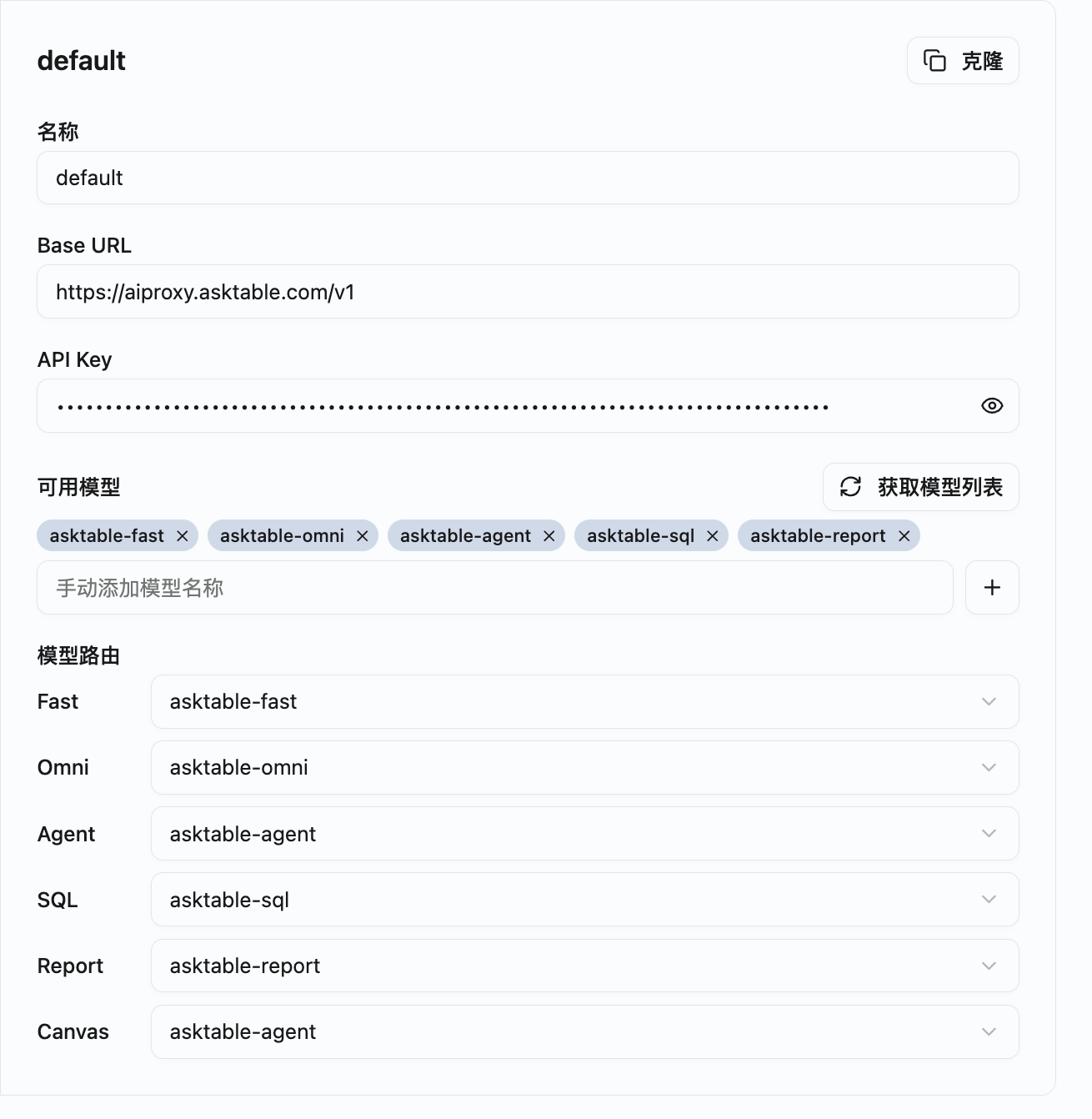
5. AskTable Default Configuration
Users can refer to AskTable's official recommended configuration:
Notes
-
API Key Security
- Do not share your API KEY in public places
- It is recommended to use different keys for different environments (development, testing, production)
- Regularly check and update keys
-
Base URL Format
- Ensure the URL format is correct
- Do not add extra slashes at the end of the URL
-
Model Availability
- Confirm that your API KEY has permission to access the configured model
- Different subscription levels may have different model access permissions
- Be aware of the call limits and costs of the model
-
Network Connection
- Ensure the server can access the configured Base URL
- When deploying privately, you may need to configure proxy or firewall rules
Troubleshooting
Issue: Unable to connect to the model service
Possible Causes:
- Incorrect Base URL configuration
- Network connection issues
- Invalid or expired API KEY
Solutions:
- Check if the Base URL is correct, you can use the curl command to test the connection
- Confirm that the server network can access the target address
- Verify the validity of the API KEY, you can check it in the service provider's control panel
Issue: Model call fails
Possible Causes:
- Insufficient API KEY permissions
- Request exceeds quota limit
- Incorrect model name configuration
Solutions:
- Check the API KEY's permissions and quota
- Confirm that the model name matches the one provided by the service provider
- View detailed error logs for more information